Spicetify is a powerful CLI tool that allow users to add extensions and themes from a rich marketplace. However, installing it on Linux can be tricky given the wide range of distros with different packet managers and stores people use. In this tutorial, I will go through the installation process on Fedora 38.
Install Spotify
First we need to install the official Spotify app. We’ll go with the software store version, in particular, it’s the flathub one.

Install Spicetify
- Run the following command to install it from shell:
curl -fsSL https://raw.githubusercontent.com/spicetify/spicetify-cli/master/install.sh | sh-
Open the Spicetify config file in the path
~/.config/spicetify/config-xpui.iniwith your prefered editor. -
Check the value of
spotify_path, it may be written. In this case, using Flatpak is usually:
/var/lib/flatpak/app/com.spotify.Client/x86_64/stable/active/files/extra/share/spotify/You can check it with the command:
flatpak --installations
echo $(flatpak --installations)/app/com.spotify.Client/x86_64/stable/active/files/extra/share/spotify/-
Now we’ll write the value of
prefs_path. In Fedora, using Flatpak it should be~/.var/app/com.spotify.Client/config/spotify/prefs. If it’s not there check~/.config/spotify/prefsand write it on the Spicetify config file. -
Add read and write permission to your user in the Spotify client files:
sudo chmod a+wr /var/lib/flatpak/app/com.spotify.Client/x86_64/stable/active/files/extra/share/spotify
sudo chmod a+wr -R /var/lib/flatpak/app/com.spotify.Client/x86_64/stable/active/files/extra/share/spotify/Apps- Install the Spicetify Marketplace
curl -fsSL https://raw.githubusercontent.com/spicetify/spicetify-marketplace/main/resources/install.sh | sh- Close and open a new terminal and patch the program with:
spicetify backup applyTo restore it:
spicetify restore backupResult
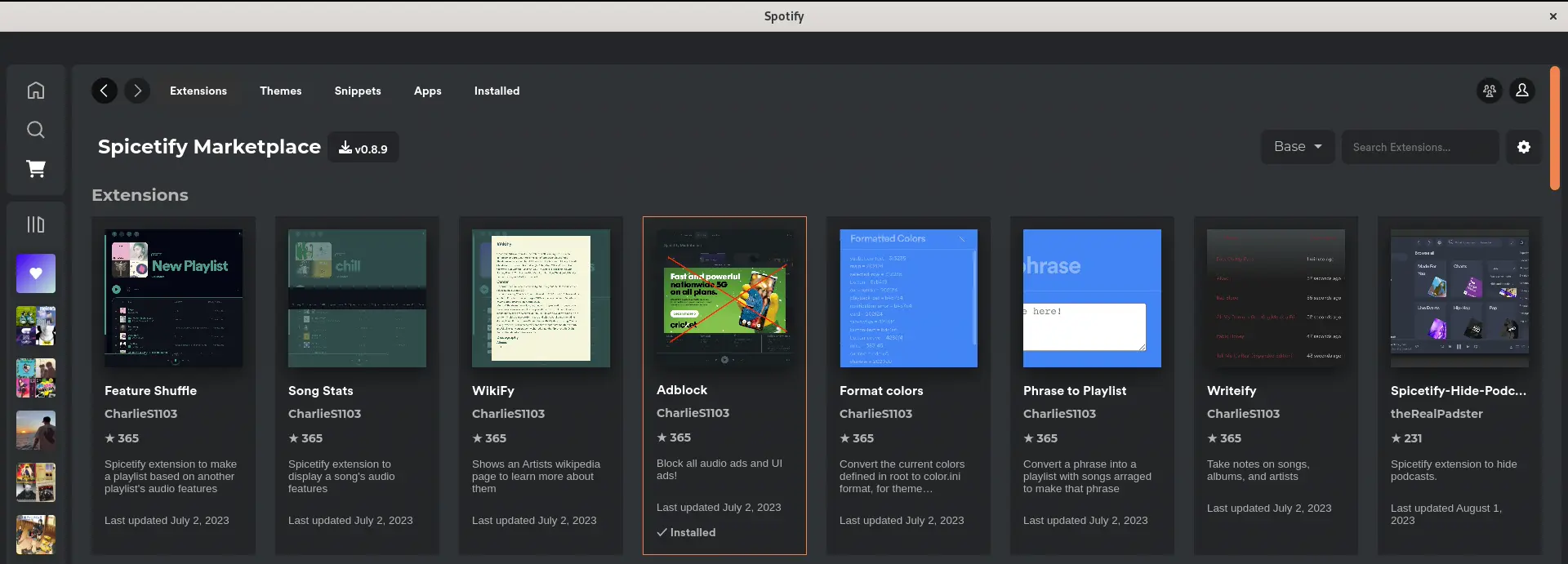
This would be the result, you’d be able to access the Spicetify Marketplace from the right menu and install extensions and themes.